> ## Documentation Index
> Fetch the complete documentation index at: https://docs.socialsyncs.co/llms.txt
> Use this file to discover all available pages before exploring further.
# Pinterest
> How to add Pinterest to your system
This integration requires that you have a Pinterest Company Account.
Head to [Pinterest Developer Dashboard](https://developers.pinterest.com/apps/) and create your App. Fill out all required Information and wait on the App to get approved.
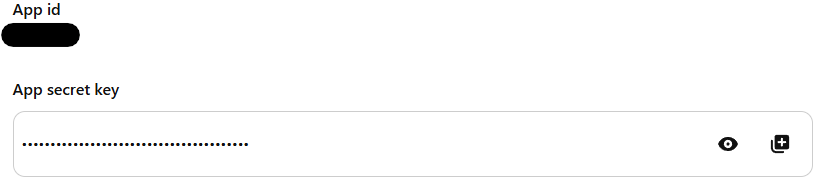
Copy the App ID at "App id" and the Secret Key at "App secret key"
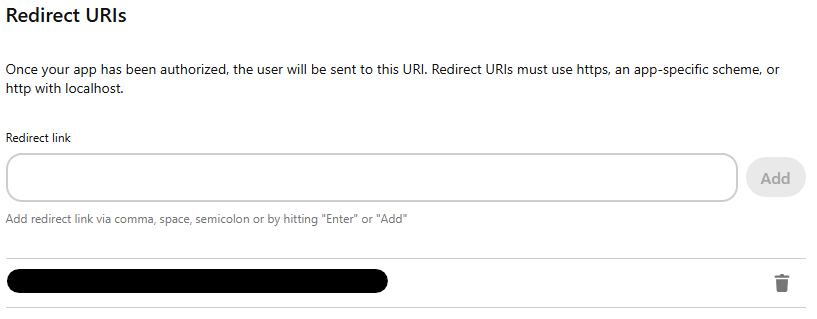
 **Your Pinterest OAuth2 Redirect URI:**
* Production: `https://your-socialsyncs-domain.com/integrations/social/pinterest`
* Local development: `http://localhost:4200/integrations/social/pinterest`
* Docker: `http://localhost:5000/integrations/social/pinterest`
**Your Pinterest OAuth2 Redirect URI:**
* Production: `https://your-socialsyncs-domain.com/integrations/social/pinterest`
* Local development: `http://localhost:4200/integrations/social/pinterest`
* Docker: `http://localhost:5000/integrations/social/pinterest`
 ```env theme={null}
PINTEREST_CLIENT_ID=""
PINTEREST_CLIENT_SECRET=""
```
You should now be able to add the Pinterest Provider to your User / Team Account.
```env theme={null}
PINTEREST_CLIENT_ID=""
PINTEREST_CLIENT_SECRET=""
```
You should now be able to add the Pinterest Provider to your User / Team Account.